
The Goal: Learn how to enable and configure the Terms of Use feature in your Community platform, and optionally display it on a dedicated Community page for members to reference at any time.
Before You Begin:
- You must have Community Admin access to configure Site Settings.
- Have your Terms of Use or Terms and Conditions text ready to paste.
Part 1: Enabling Terms of Use in Site Settings
- Click the gear icon in the upper right corner to open Site Settings and Admin Tools.
- Under Layout, click General.
- Scroll down to the Terms of Use section.
- Enable the toggle at the top of the Terms of Use section.
- Add the title and body of your Terms and Conditions.
- Title
The dialog title will be “sticky” at the top of the Terms of Use popup.
- Text
There are several tools that can be used within the text editor:
Various font styles, paragraph styles, bullets, etc.
Add images
Embed videos using a YouTube or Vimeo URL
Hyperlink text to additional resources outside of the Community platform
- Title
- Click Preview to review how it will appear to users.
- Click Save. Terms of Use is now enabled!
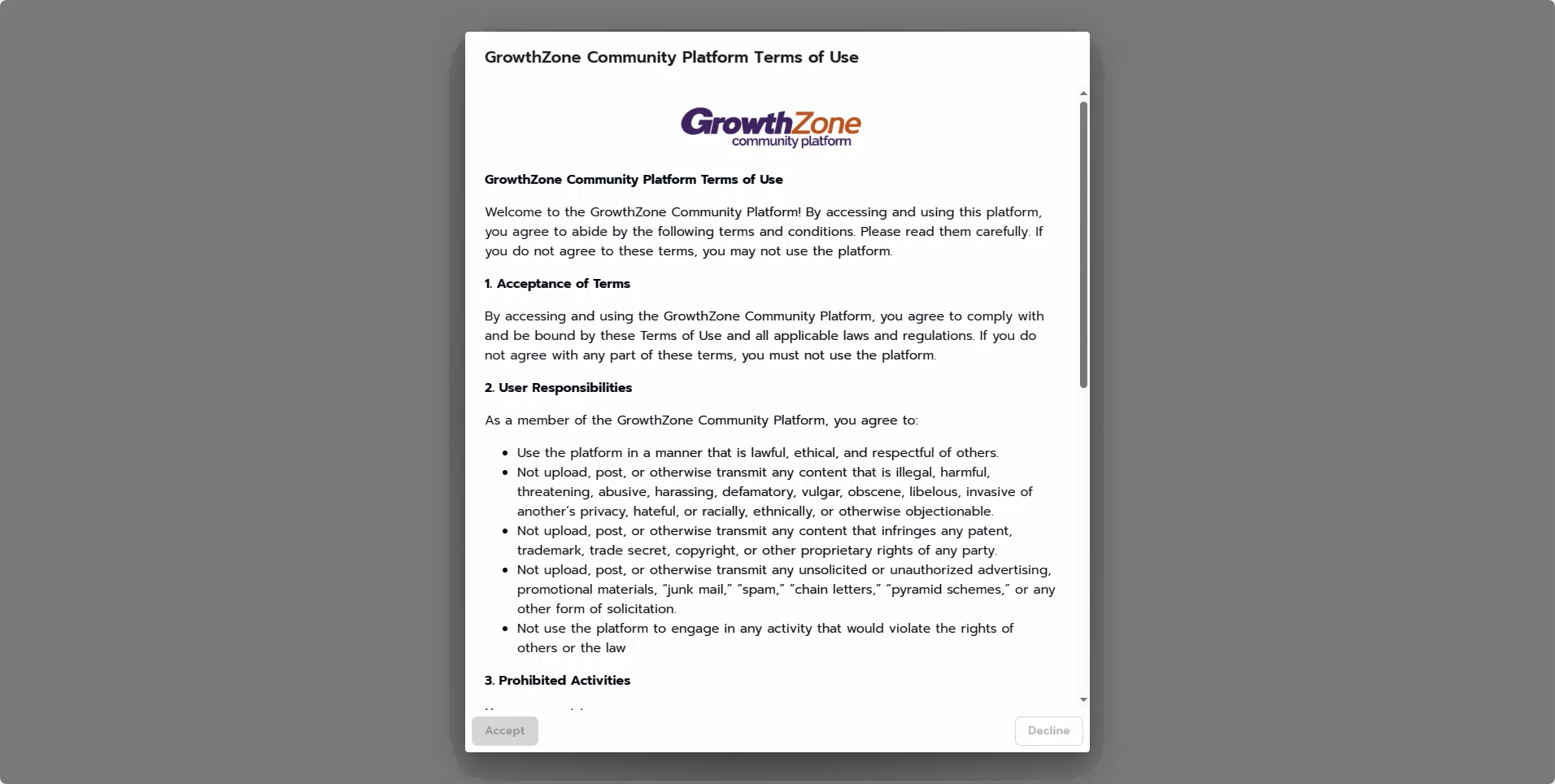
What Members Experience Upon their next login, Community members will be prompted to scroll through the full Terms of Use text before the Accept and Decline buttons activate. Members must accept to enter the platform — if they decline, they will not be able to proceed.
Part 2: Adding a Terms of Use Page in the Page Builder
A dedicated Community page can display your Terms of Use so members can reference it anytime — not just at login.
- Click the gear icon in the upper right corner to open Site Settings.
- Under Layout, click Pages.
- Click New Page to create a new Community page.
- Click the + button to add a content module, then select Terms of Use from the module list.
- Click Save Page.
- Add the new page to your top bar or side navigation so members can find it.
Common Pitfalls
- Forgetting to add the page to navigation: After creating the Terms of Use page, it won't be visible to members unless you manually add it to your top bar or side navigation.
Comments
0 comments
Please sign in to leave a comment.