
Before You Begin:
- Private Calls must be enabled on the site at the discretion of your Site Admin.
- Choose your microphone, camera, and speaker in advance on your Settings card: open your Profile menu in the upper right corner of the community and choose Settings. Setting these before your first call avoids scrambling once a call is already ringing.
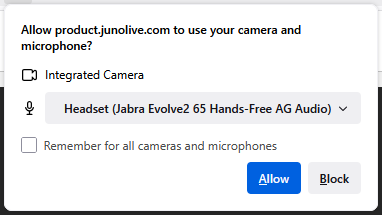
- Your browser will also prompt you to allow camera and microphone access. You must accept before you can enter the meeting room.
- You can only call someone the platform detects as active. If the "send a message instead" fallback matters to you, Messenger must be enabled at the site level and both members must have messaging turned on in their own Settings.
In This Article
Within Community, you can set up Private Calls. Private Calls can be initiated in a variety of different ways, allowing members within Community to interact with each other through video calling.
Overview
Requirements
Private Calls must be enabled on the site at the discretion of the Site Admins.
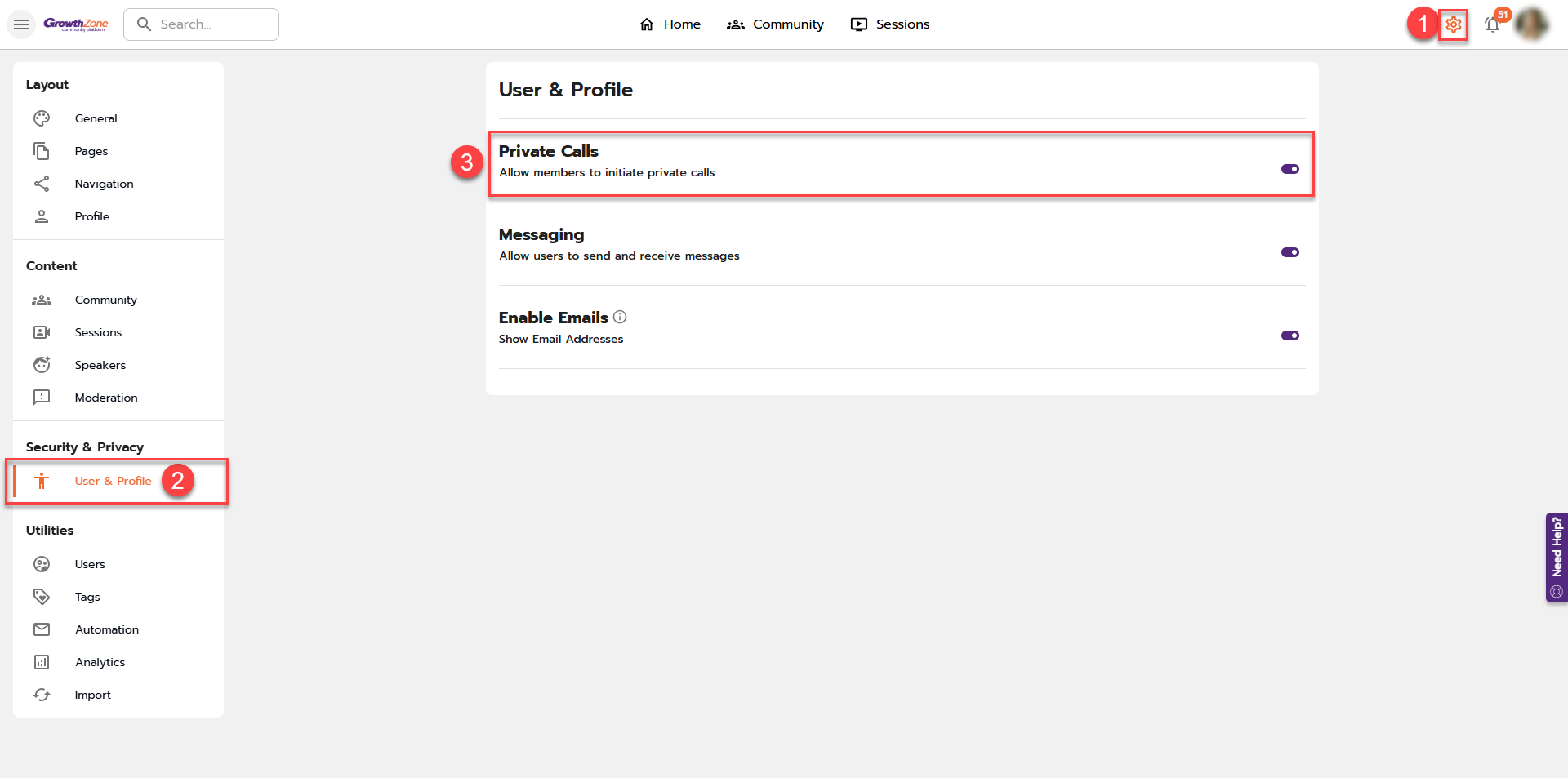
- As a Site Admin, go to Site Settings by clicking on the Gear icon in the top right-hand corner.
- Under Security and Privacy, select User & Profile.
- Select the Private Calls toggle option.
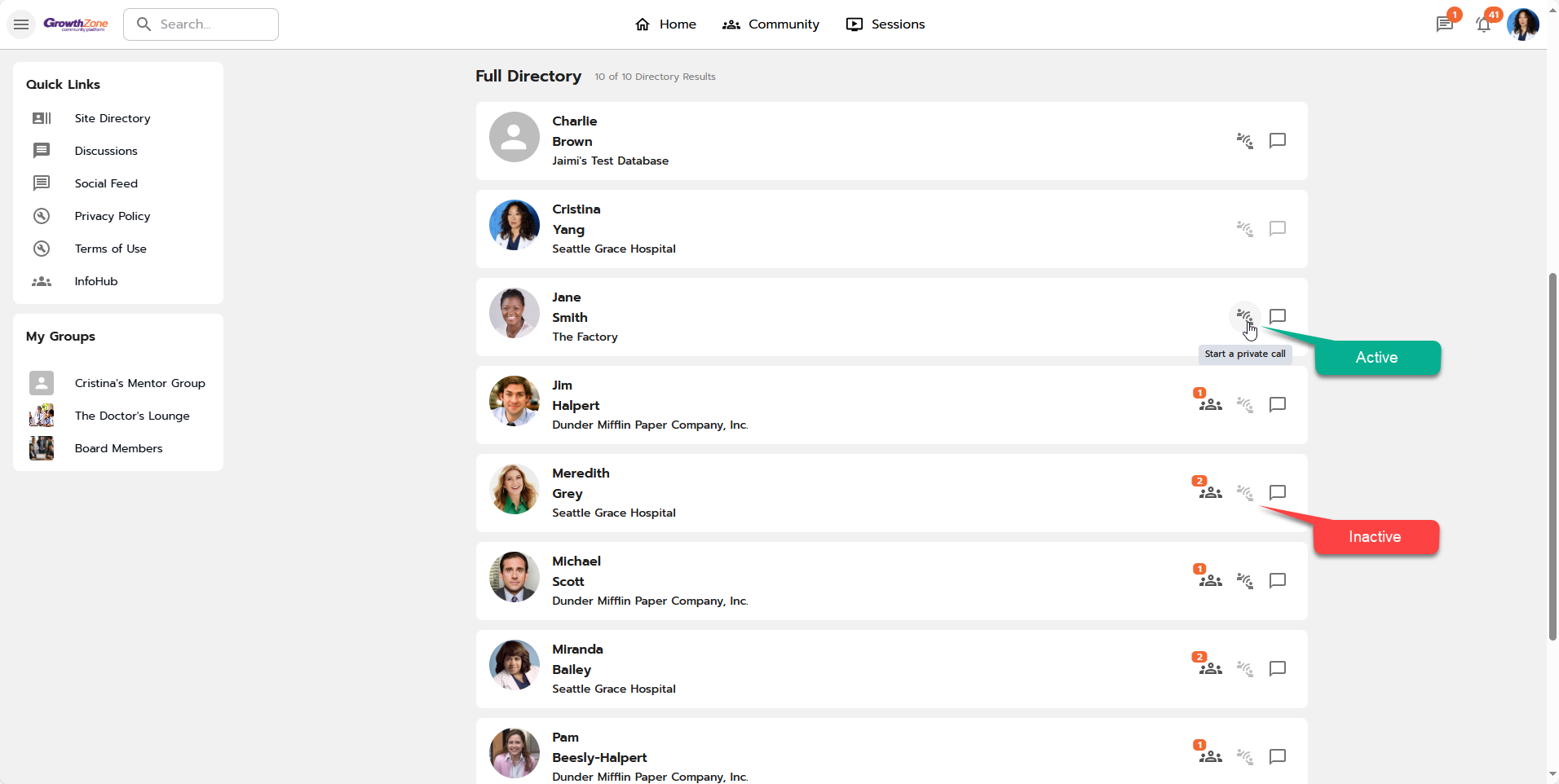
Leveraging Community's ability to detect active versus inactive users, calls can only be initiated with an individual who is detected as being active on the platform.
Choosing Your Microphone, Camera, and Speaker
Your audio and video device selections live on the Settings card of your Settings page, alongside your profile privacy, email visibility, messaging, and time zone controls. Open your Profile menu in the upper right corner and choose Settings to set them before your first call.
Initiating a Private Call
A Private Call can be initiated from various areas of the platform
-
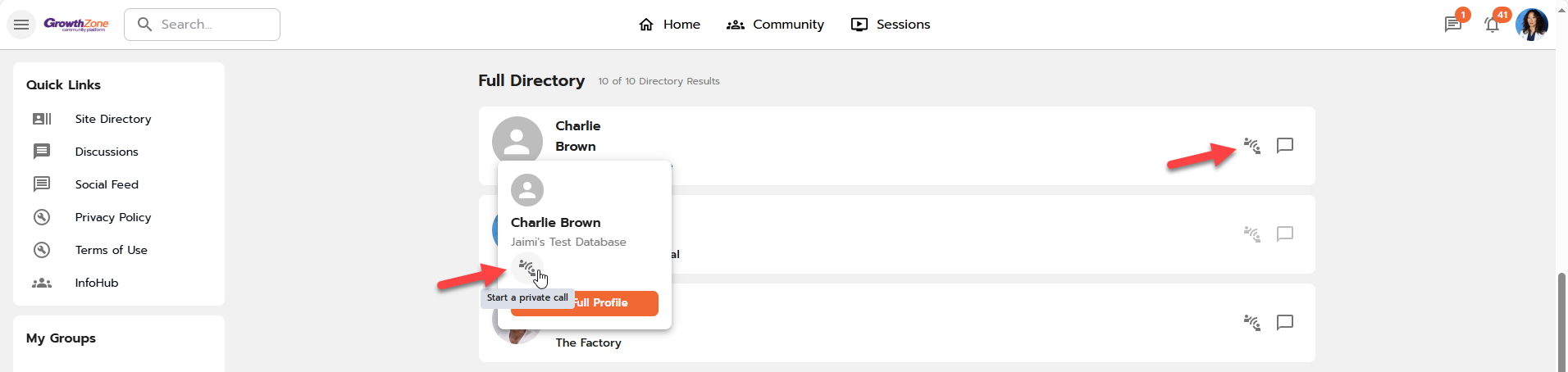
Site-level Directory
-
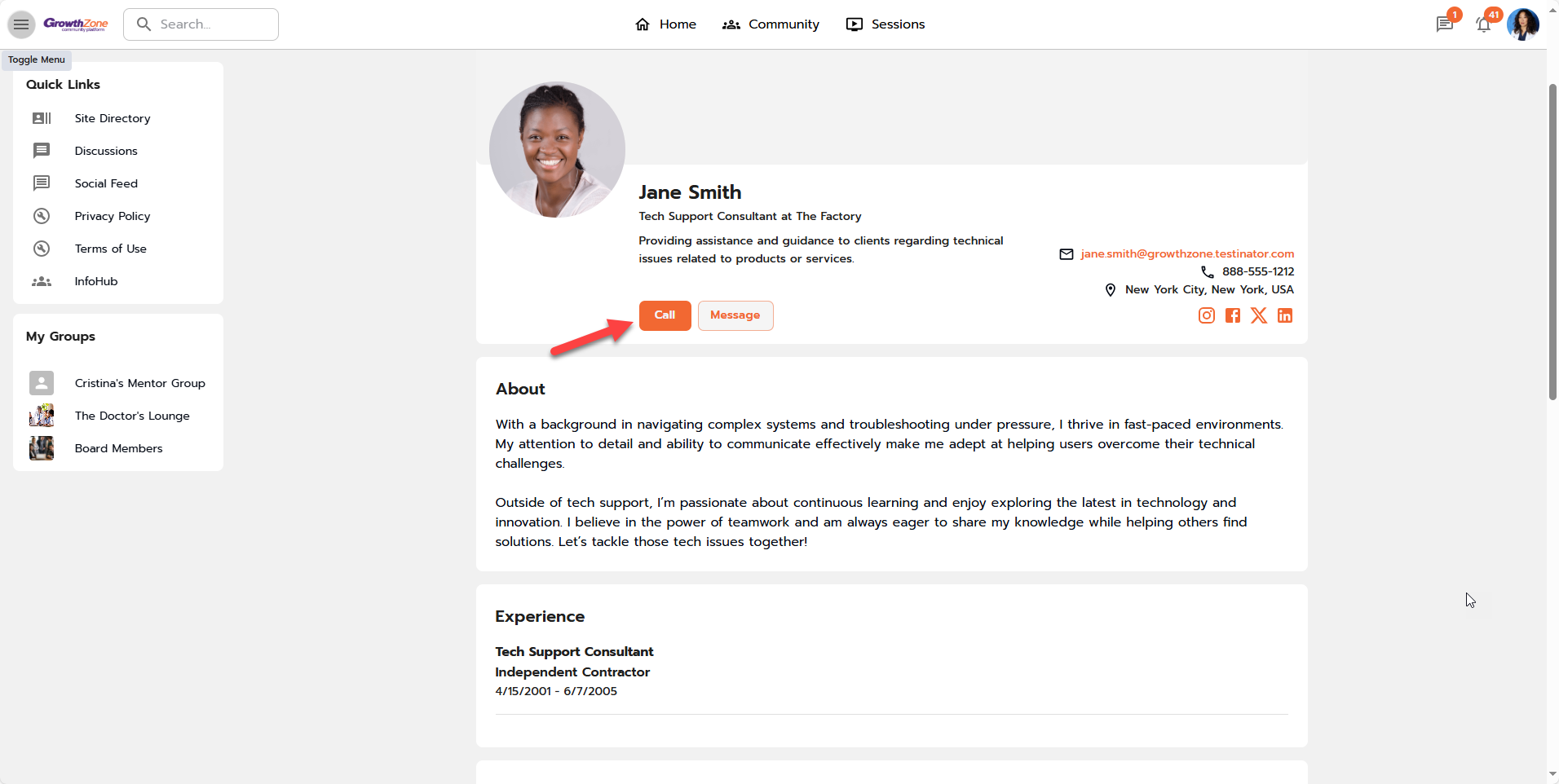
An individual's profile
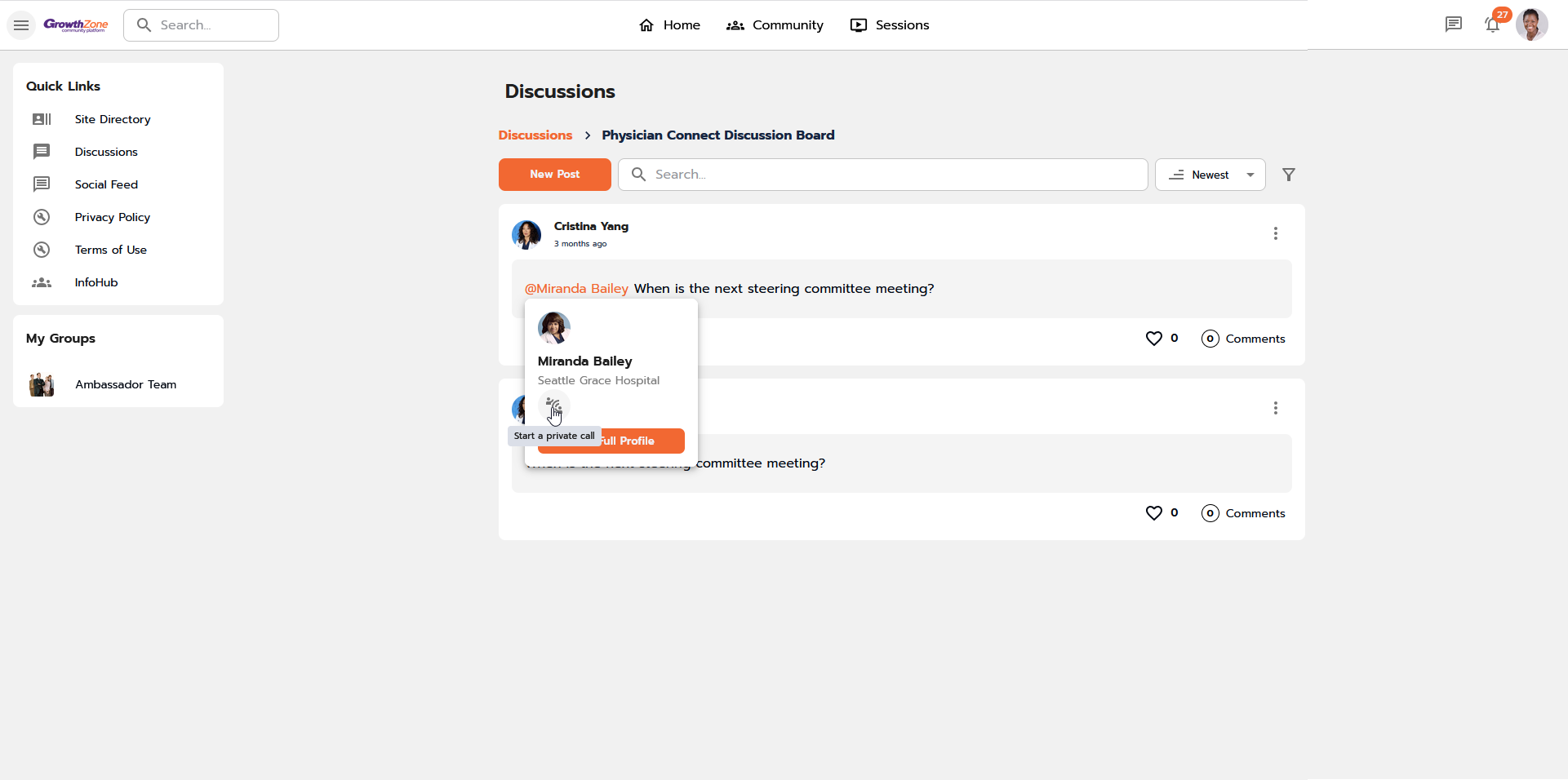
- Anywhere an individual's avatar is clickable, such as:
-
Group-level directory
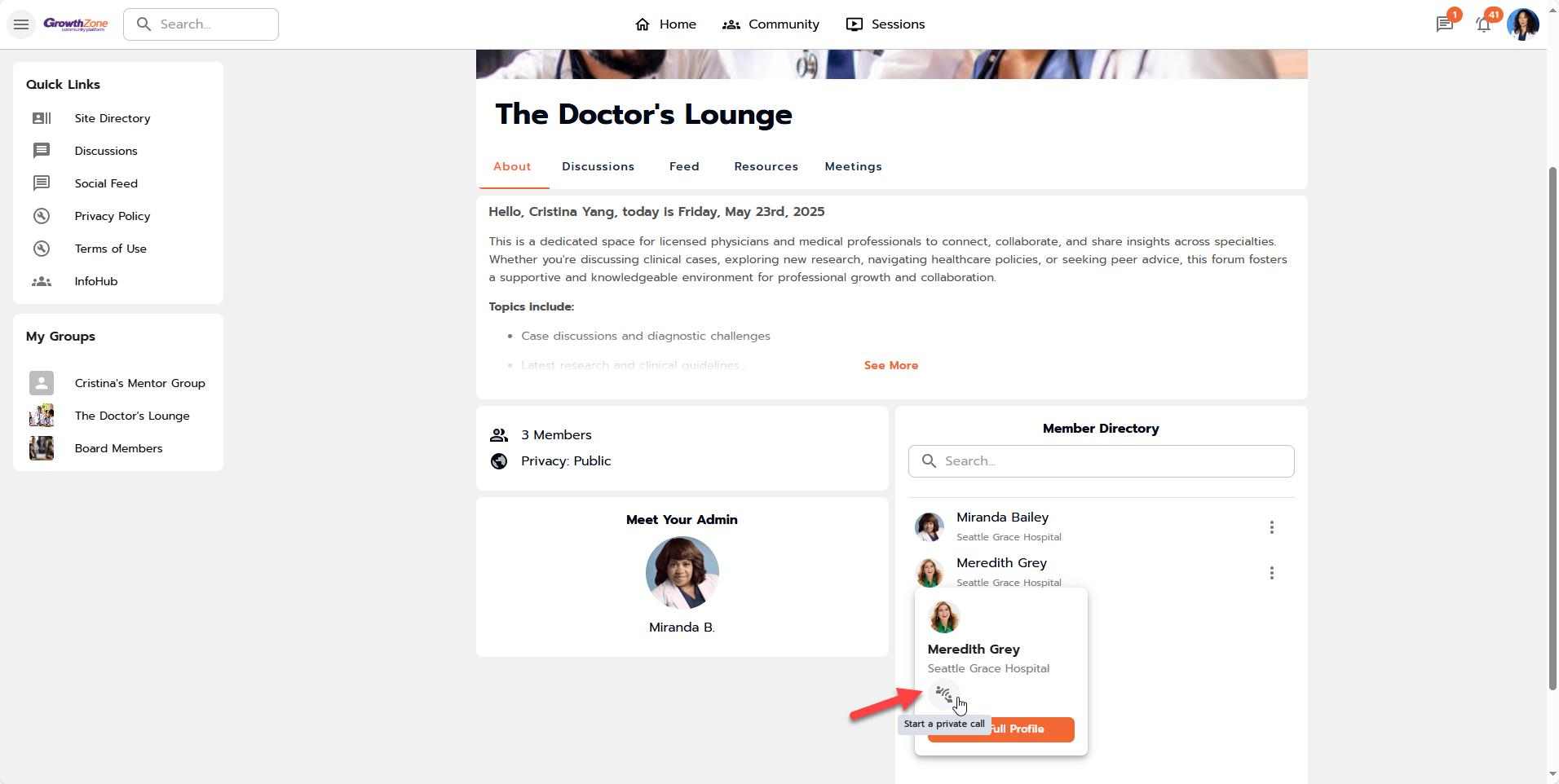
- Discussions and feed, either from the post author avatar or an @mention link
-
How to Initiate a Private Call as the Caller
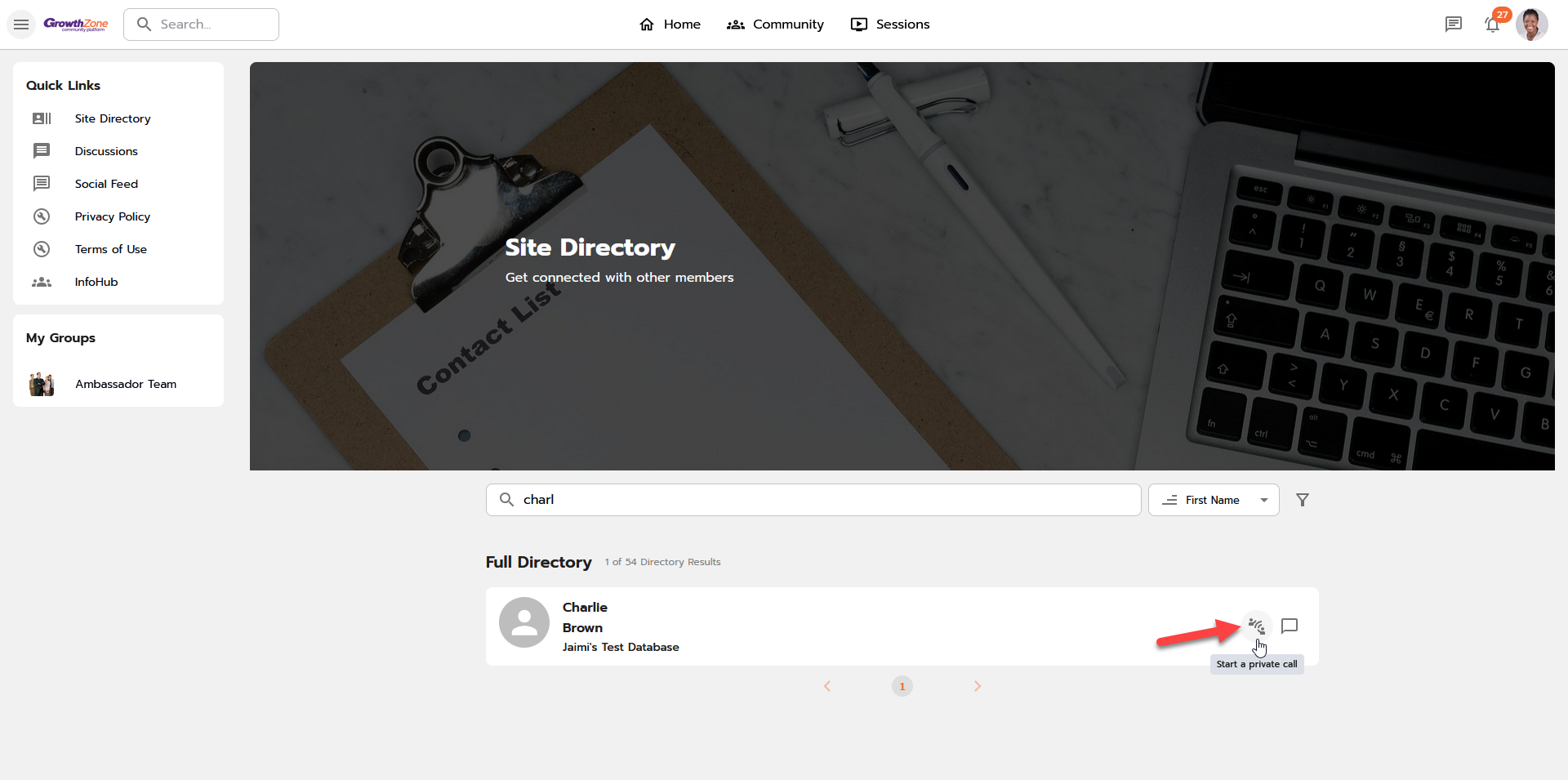
- Click on Start a private call.
-
Choose to join with Audio, join with Video, or Cancel. There is an option available to join the call in a new browser tab.
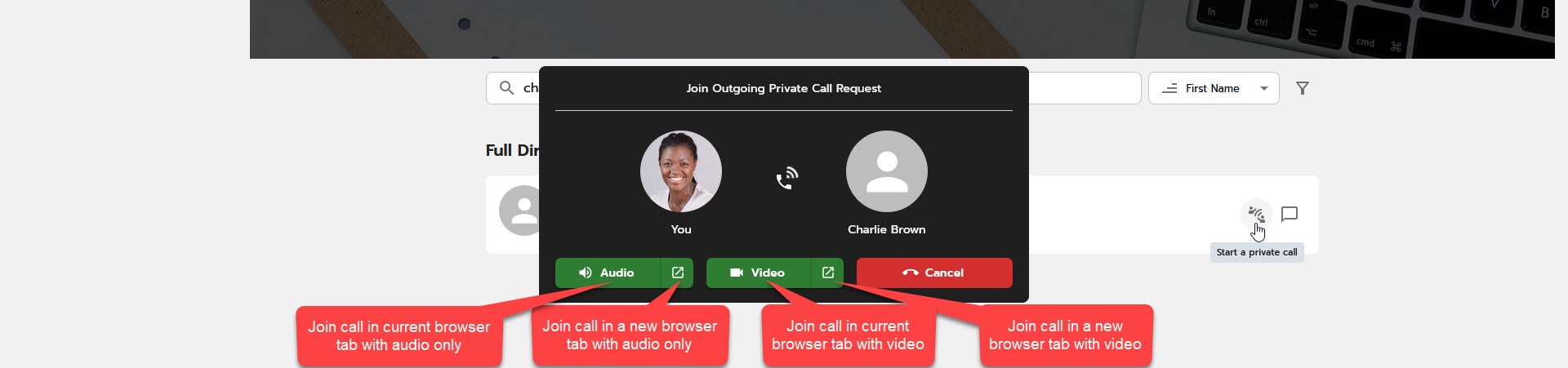
- Be sure to allow the site and browser to use your camera and microphone when prompted.
-
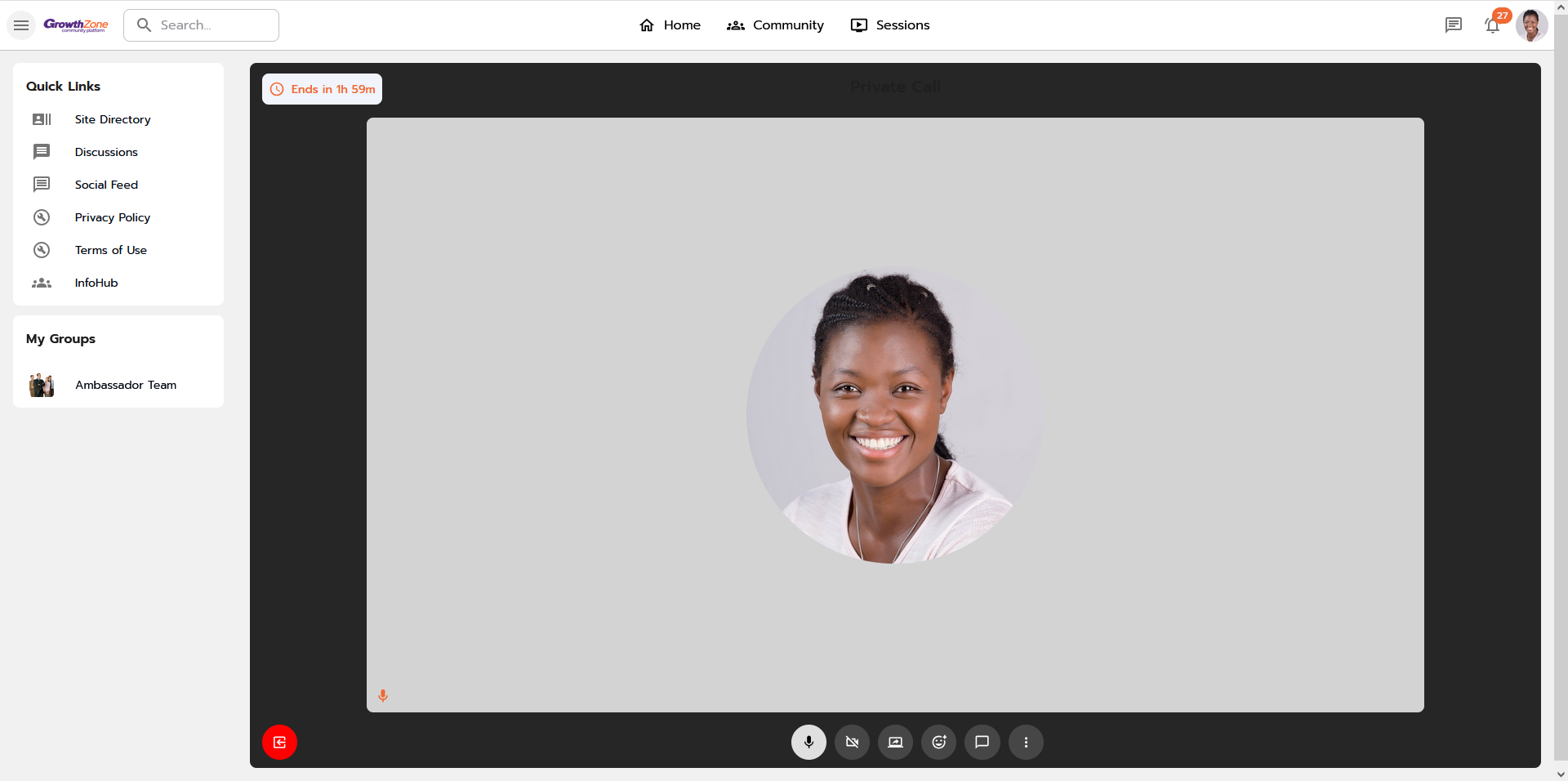
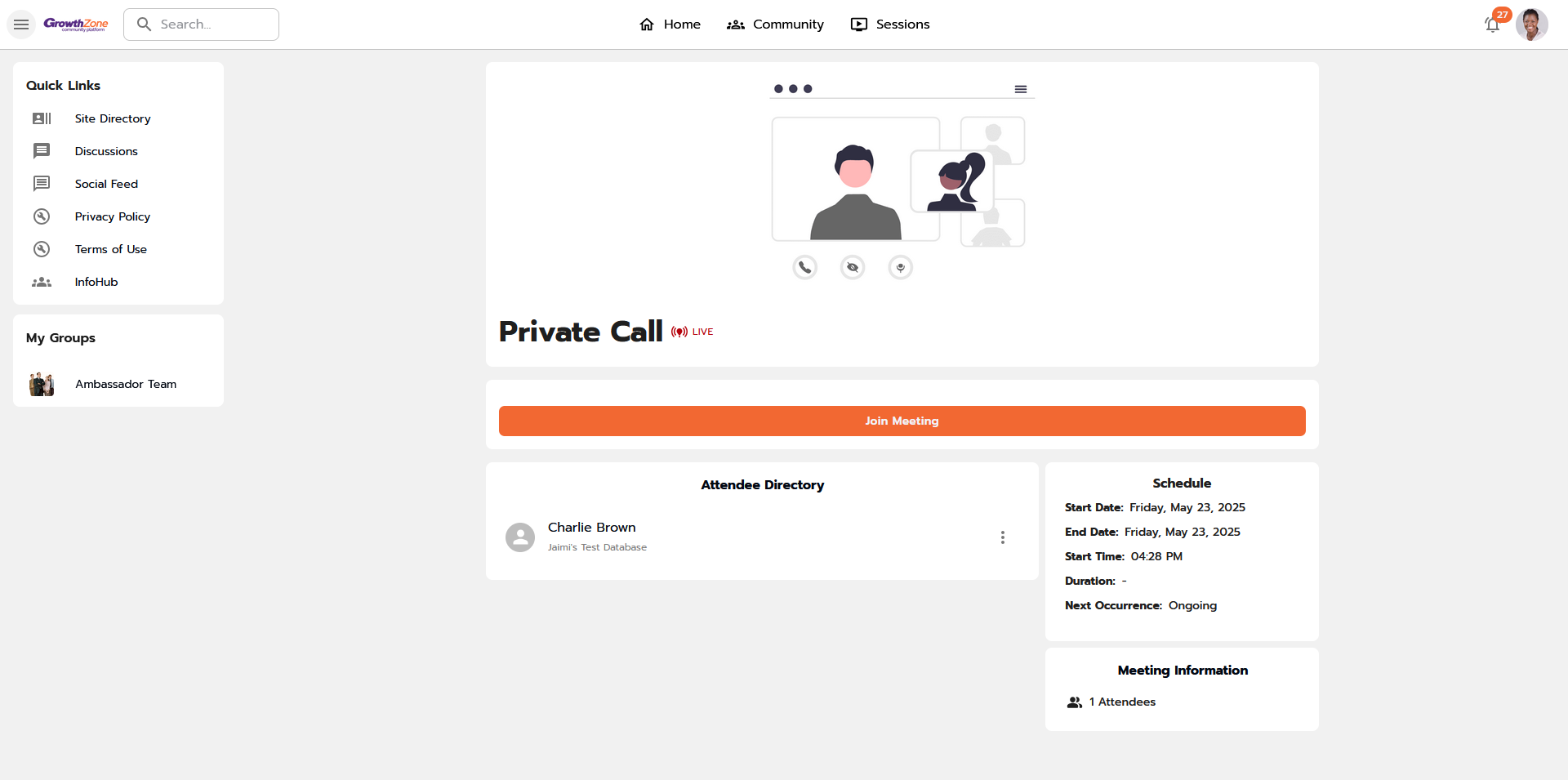
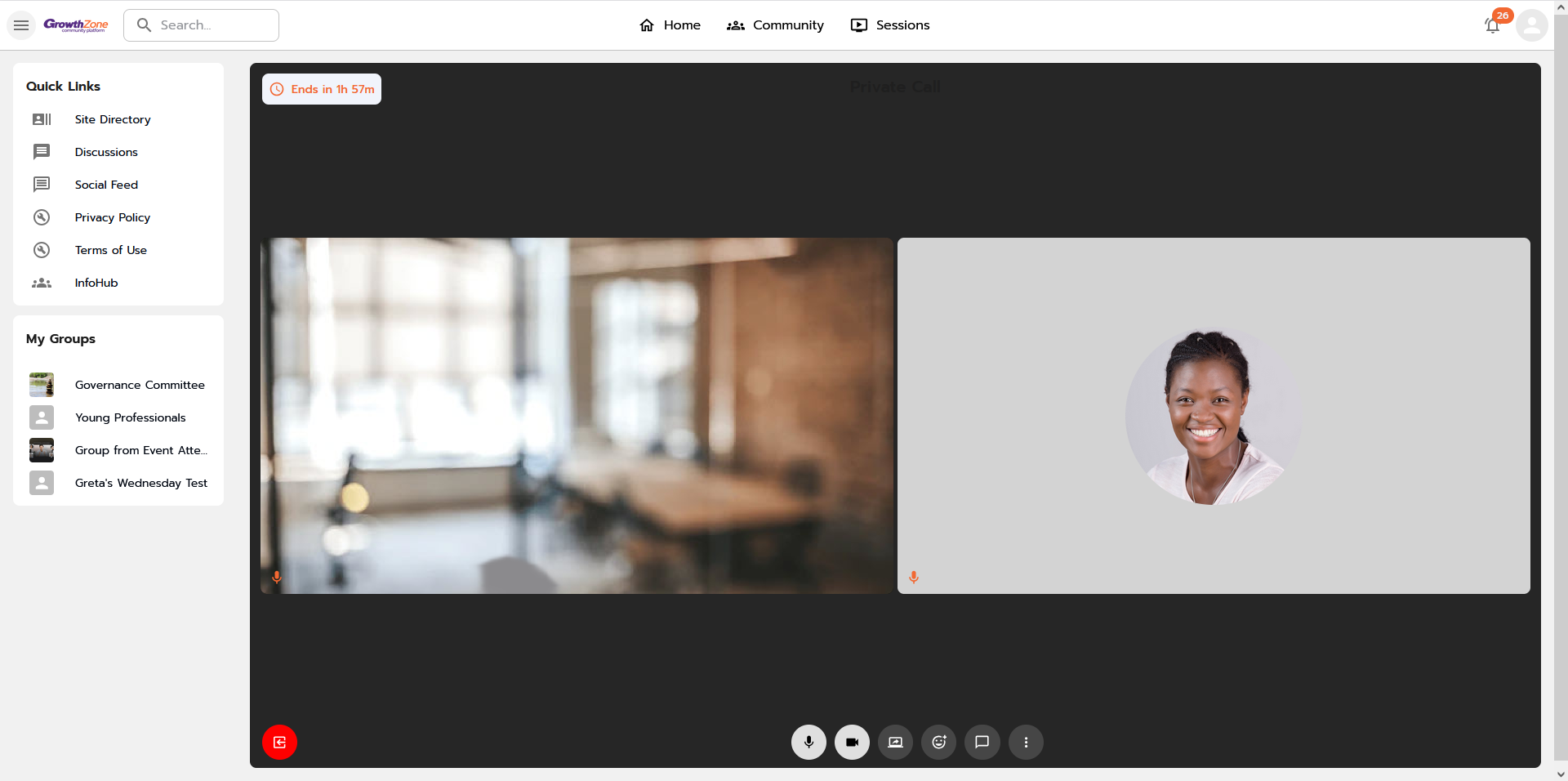
You will enter the meeting room.
-
If the call is unanswered or declined, a message will appear along with an option to send a message instead. Depending on the timing of the decline, this will appear before or after entering the meeting room.
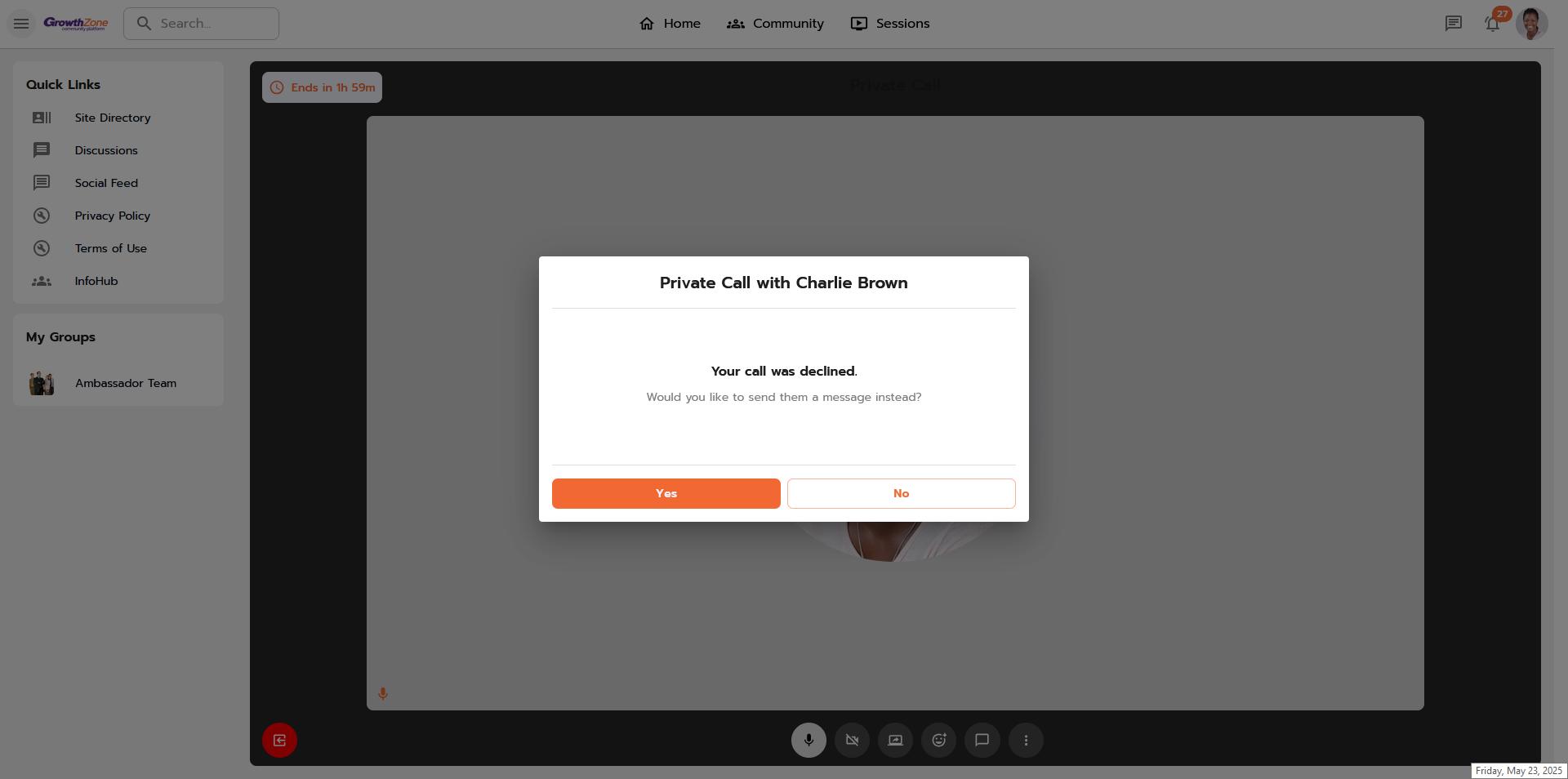
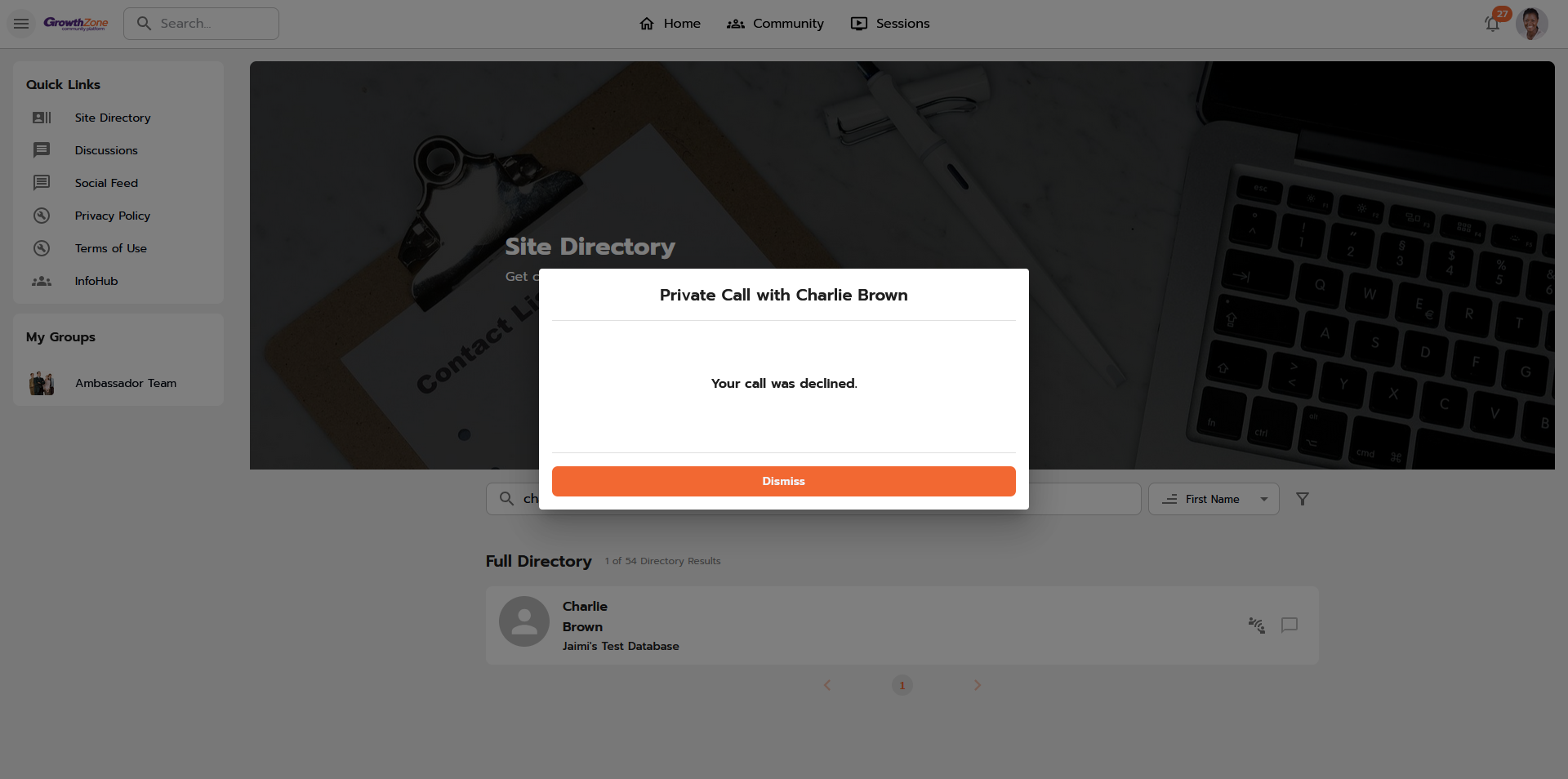
If Messenger is disabled at the site level, or if at least one of the two Community members has it turned off in their own Settings, the message option is unavailable and the pop-up will be dismissed.
-
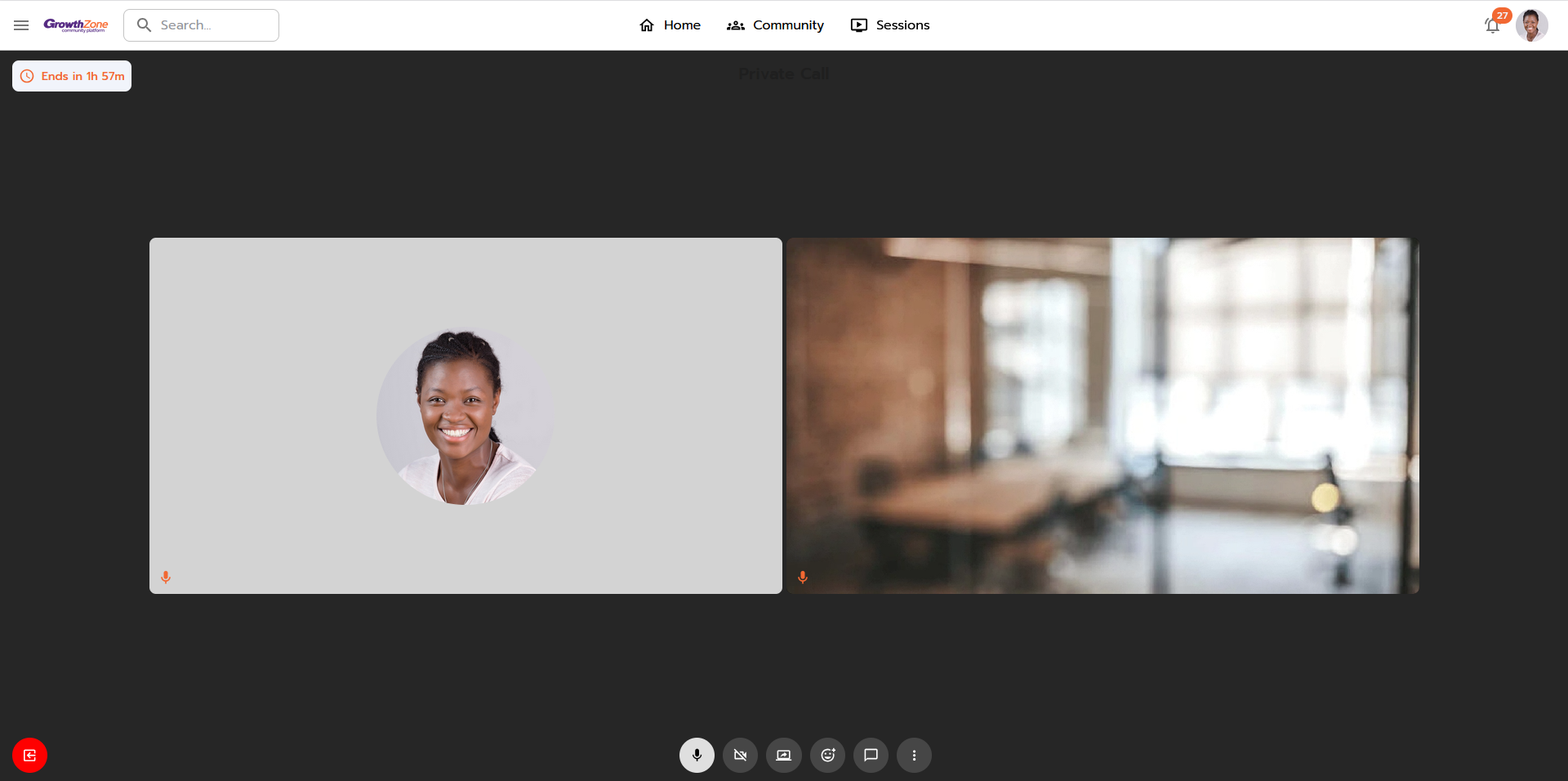
If the call is answered, the call recipient will enter the meeting room when the call is accepted.
-
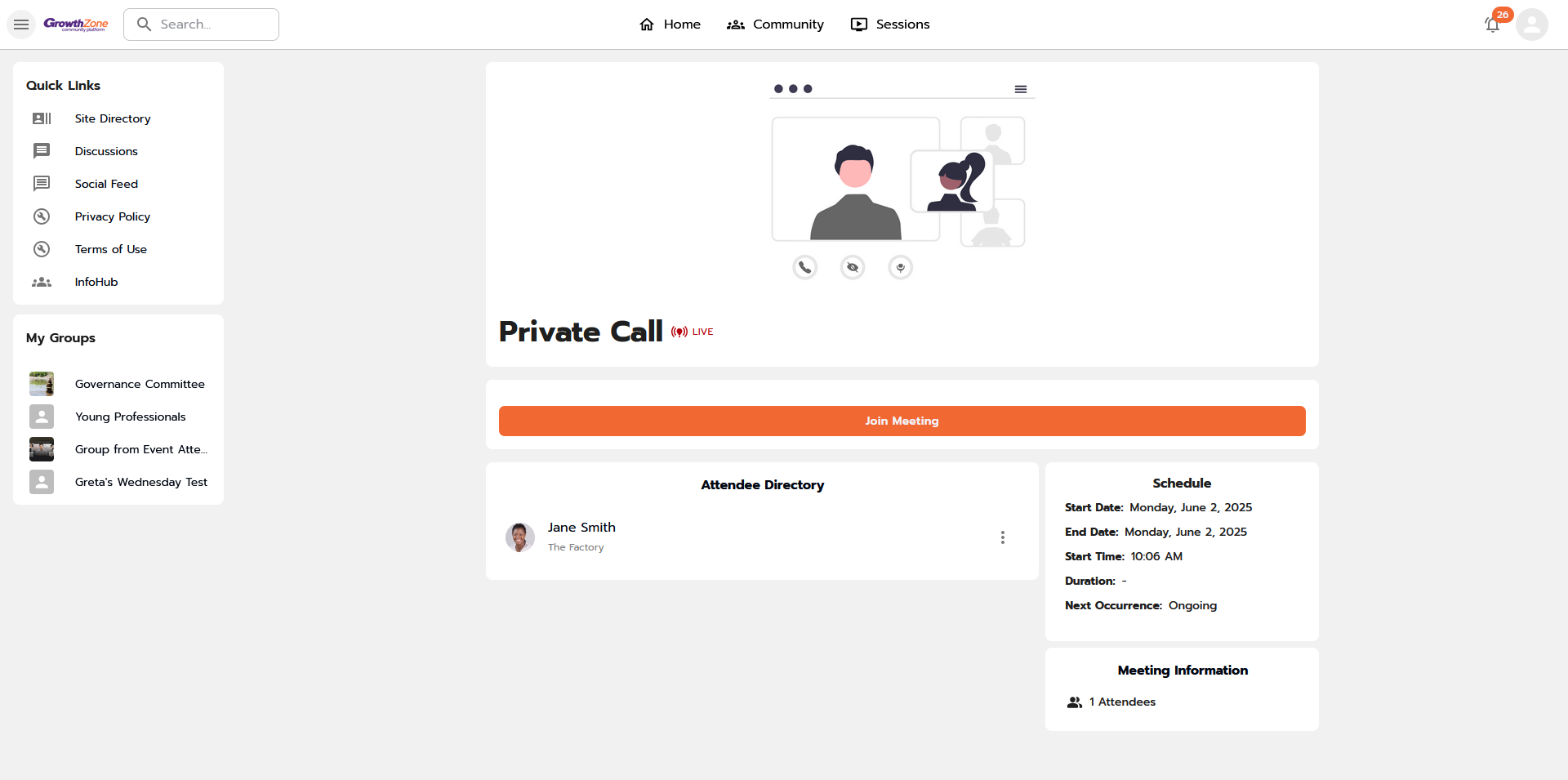
The call details will be presented to you after the call ends. The call will remain active for 2 hours from the start time and can be rejoined by both participants within that timeframe.
Receiving a Private Call
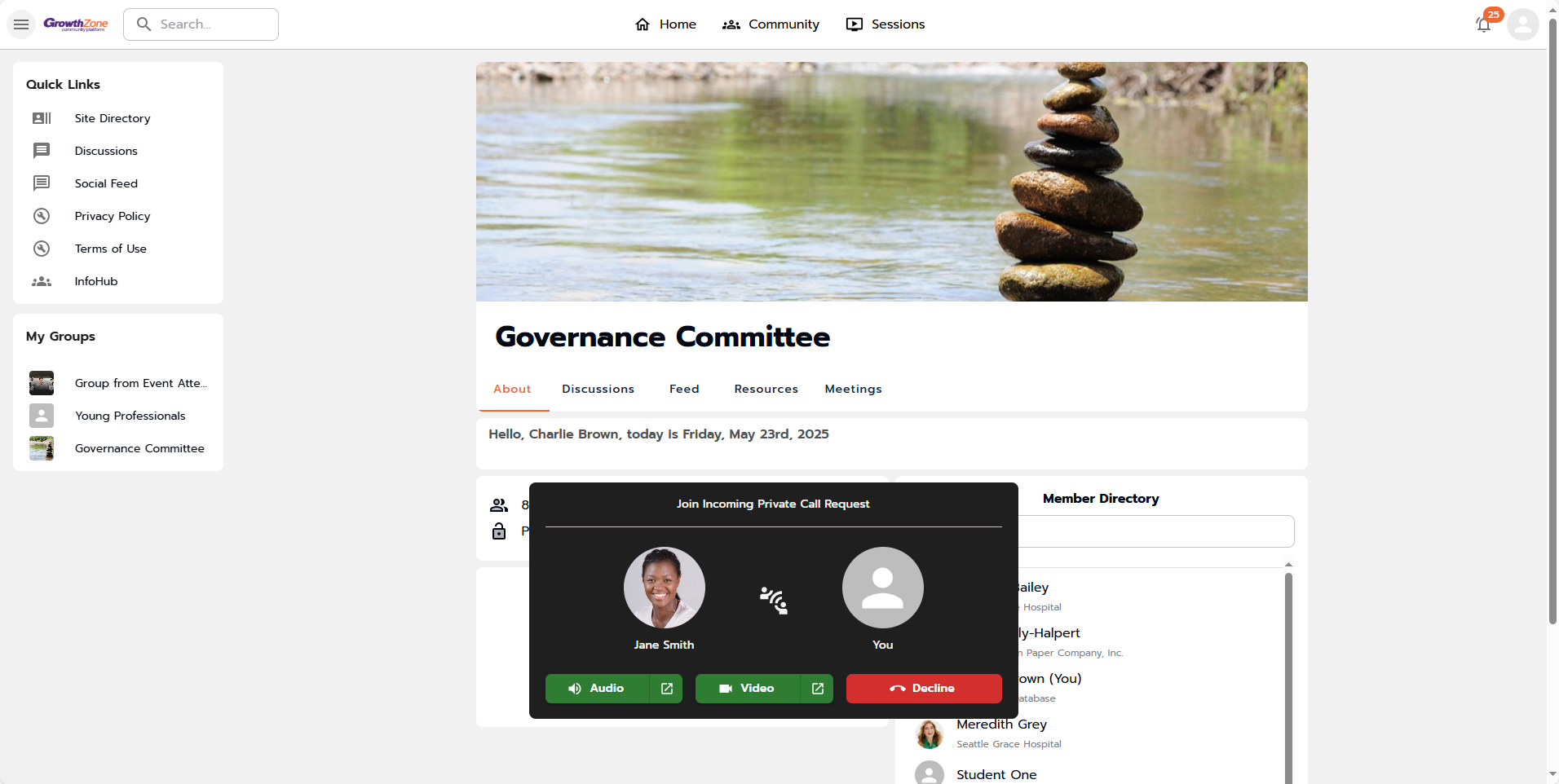
An incoming private call request pop-up will appear with the same options as initiating a call:
-
Choose to join with Audio, join with Video, or Decline. There is an option available to join the call in a new browser tab.
-
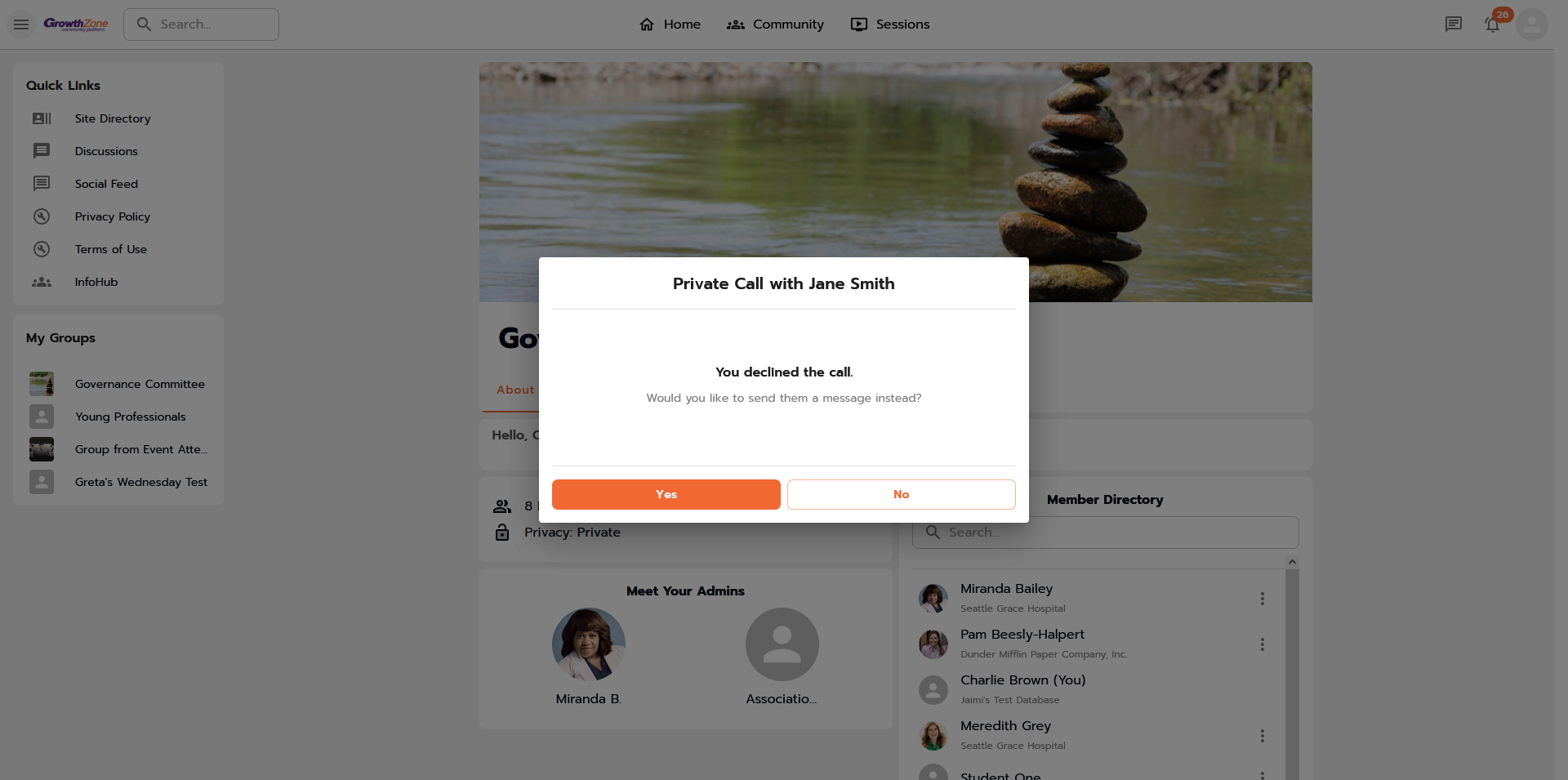
If you decline, a message will appear with an option to send a direct message to the caller instead.
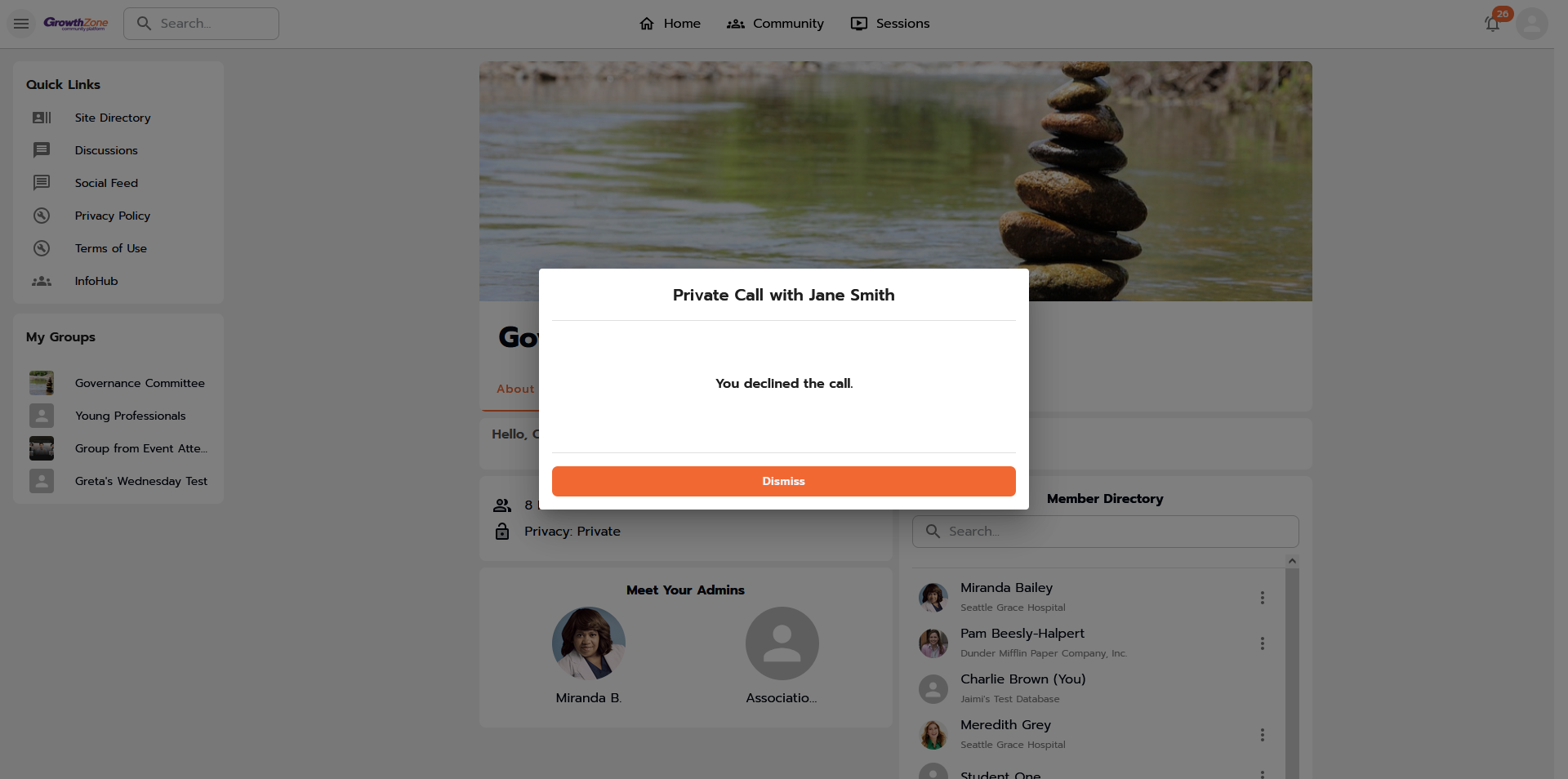
If Messenger is disabled either at the site level, or if at least one of the two community members has it turned off, the message option is not available and the pop-up will be dismissed.
-
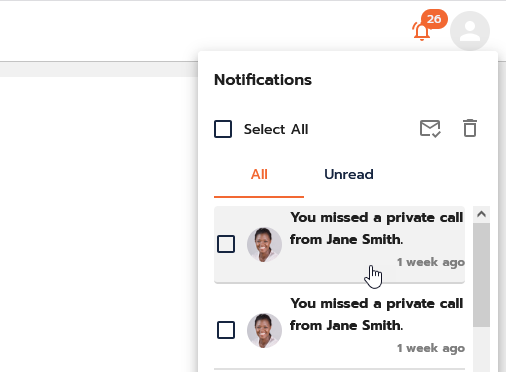
If the call is not answered or is dismissed, it is considered a missed call and you will receive an in-app notification.
-
If you accept the call, you will need to allow the camera and microphone before entering the meeting room.
-
You will automatically enter the meeting room after the above items are allowed.
-
The call details will be presented after the call ends. The call will remain active for 2 hours from the start time and can be rejoined by both participants within that timeframe.
Common Pitfalls
- Not being able to call someone: Calls can only be started with a member the platform detects as active. If you cannot start a call, they are likely not currently on the platform.
- The wrong microphone or camera being used: Device selection is on your Settings card, not in the call window. Set it before you call rather than mid-conversation.
- The "send a message instead" option not appearing: Either Messenger is off at the site level, or one of you has turned messaging off in your own Settings. Both members need it on.
- Assuming a missed call is gone for good: The call stays active for 2 hours from the start time, and either participant can rejoin within that window.
Comments
0 comments
Please sign in to leave a comment.